

Online Mouse Test
A free browser-based mouse tester to check buttons, scroll wheel smoothness, switch chatter, and USB polling rate in real time with zero downloads.
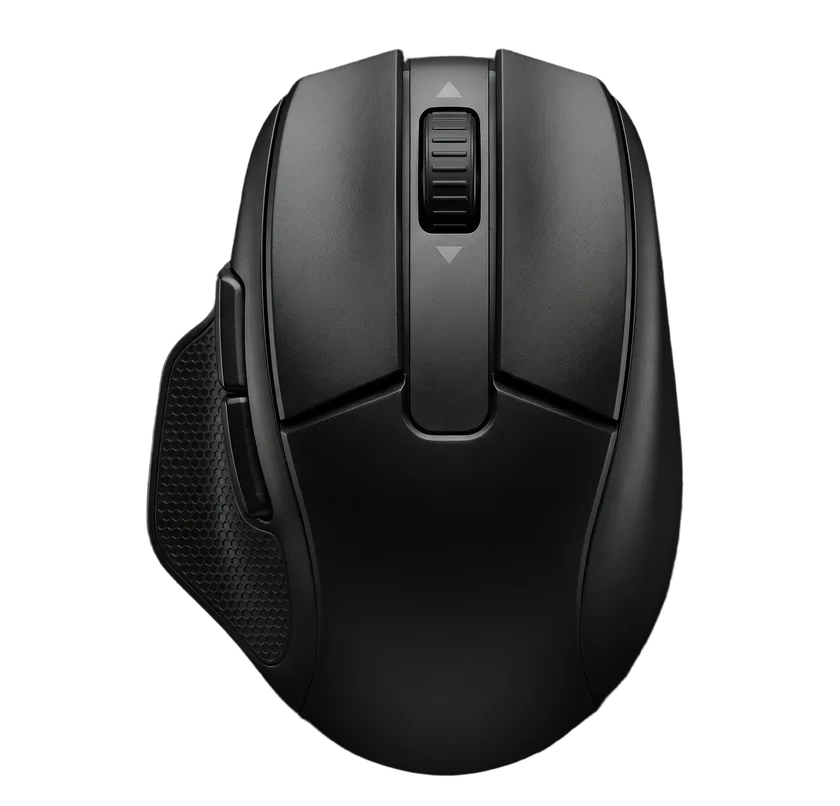
Click or scroll anywhere to test your mouse.
Live Mouse Diagnostic Benchmarks
Test your sensor polling rate, switch chatter, click speed, and scroll wheel in real time below.
How to Test Your Mouse in 3 Simple Steps
Follow this structured sequence to verify your mouse hardware and identify switch or sensor faults within seconds.
Actuate Physical Buttons
Click each button on your mouse—Left, Right, Middle (wheel click), and both thumb side buttons. Observe the live visualizer above to ensure each switch illuminates immediately upon actuation and clears cleanly upon release.
Check Debounce & Scroll Encoder
Perform several rapid single clicks to isolate microswitch contact bounce. If your switch registers two clicks within 30–80 milliseconds, hardware chatter is present. Then, roll your scroll wheel up and down to check for erratic reverse jumping.
Measure Sensor Polling & Latency
Move your mouse in rapid, circular motions to sample raw USB packet delivery. Confirm whether your sensor reaches its advertised report frequency (1000Hz, 2000Hz, 4000Hz, or 8000Hz) and verify consistent frame delivery without stutter.
What Your Mouse Test Results Mean
Every diagnostic tool in our testing suite evaluates a specific physical or electrical property of your gaming mouse.
Clicks Per Second (CPS Speed)
Measures your clicking speed over 1 to 60-second intervals. Analyzes muscle fatigue, burst cadence, and consistency across normal, butterfly, and jitter clicking styles.
USB Polling Rate (Hz)
Calculates how many coordinate updates your mouse transmits per second. Validates whether your gaming mouse achieves true 1000Hz (1ms) or 8000Hz (0.125ms) speeds.
Double-Click Switch Diagnostic
Detects mechanical switch contact chatter by measuring release-to-press intervals. Instantly isolates worn copper leaf springs causing unintended second clicks.
Scroll Wheel & Encoder Test
Logs continuous wheel delta values and detects reverse skipping artifacts. Essential for identifying dirty optical encoders or worn mechanical rotary switches.
DPI Analyzer & CPI Calibration
Measures true physical sensor resolution (CPI) against nominal box ratings, reveals manufacturing DPI deviation, and computes physical 360° turn distance.
Sensor Jitter & Hold Stability
Visualizes raw tracking paths to reveal sensor ripple, angle snapping, and pixel skipping. Also diagnoses switch contact dropouts during continuous holding.
Common Mouse Problems & Hardware Fixes
Practical hardware troubleshooting guide based on manufacturer specifications and established peripheral diagnostics.
1. Mouse Double-Clicks When Clicking Once
Cause: Traditional mechanical switches (such as Omron 20M or 50M) use a curved beryllium copper spring. Over months of use, moisture and electrical arcing cause microscopic oxidation on the contact pad. When the switch releases, the spring rebounds and makes momentary electrical contact again (switch chatter).
Fix: Increase the debounce time in your mouse companion software (e.g., from 4ms to 8ms or 12ms) to filter out the electrical chatter. For a permanent hardware fix, replace the mechanical switches with gold-plated dustproof microswitches (such as TTC Gold or Huano Blue Shell Pink Dot) or upgrade to an optical mouse switch design which physically cannot chatter.
2. Scroll Wheel Jumps in the Opposite Direction
Cause: Rotary mechanical scroll encoders (such as ALPS, TTC, or Kailh) rely on rotating copper wipers sliding across internal conductive tracks. Over time, skin oil, dust, and lint enter the encoder housing, causing intermittent electrical connection during rotation that the microcontroller misinterprets as opposite-direction scroll steps.
Fix: Use a can of compressed air directed into the scroll wheel opening while rapidly spinning the wheel. If the issue persists, apply a tiny drop of fast-evaporating electrical contact cleaner into the encoder housing, or solder in a new dustproof encoder.
3. Cursor Jitter, Skipping, or Floating Aim
Cause: Pixel skipping occurs when optical sensors like the PixArt PAW3395 or HERO 2 encounter microscopic debris in the lens aperture, or when operating on uneven cloth mousepads with high lift-off distance (LOD). Running extremely high DPI settings (above 3,200 DPI) can also introduce sensor interpolation noise.
Fix: Inspect and clean the sensor lens with a clean cotton swab and compressed air. Lower your native hardware DPI to 800 or 1600 DPI (which provides a 1:1 raw sensor matrix with zero interpolation), and calibrate your surface tuning or set the Lift-Off Distance (LOD) to low in your mouse software.
4. Lag and Stutter at High Polling Rates (4000Hz / 8000Hz)
Cause: At 8000Hz, the mouse sends 8,000 interrupt requests per second to your CPU, requiring the Windows thread scheduler and game engine to process coordinates every 125 microseconds. On systems with older CPUs or USB hubs shared with audio interfaces, this can saturate a single core and cause game frametime spikes.
Fix: Connect your high-speed mouse directly to a native motherboard USB 3.0/3.2 rear port (avoiding front-panel headers and unpowered USB hubs). In your game settings, enable "Raw Input" or "High Precision Mouse Input". If micro-stutters persist, stepping down to 2000Hz or 4000Hz reduces CPU load while maintaining smooth input delivery.
5. Keyboard Key Chatter, Ghosting & Input Stutter
Cause: Mechanical keyboard switches accumulate dust and switch leaf oxidation, leading to duplicate keystrokes (key chatter) or unrecorded inputs under simultaneous keypresses due to matrix ghosting limits (2KRO/6KRO). Magnetic switches with analog Hall Effect sensors eliminate physical leaf contacts entirely and dynamically calculate travel depth.
Fix: Verify simultaneous keypresses and matrix limits with our keyboard tester. For competitive titles requiring instant counter-strafing, utilize magnetic switch keyboards equipped with Rapid Trigger firmware that resets switch actuation the instant a key moves upward.
Gaming Calculators & Peripheral Hardware Tools
Explore our calculators, hardware specifications database, and peripheral ergonomics matchers.
Sensitivity Converter
Convert mouse sensitivity 1:1 across 19+ competitive FPS titles with 360° cm distance and exact eDPI.
Hand Size Matcher
Match your exact hand dimensions and grip style (Palm, Claw, Fingertip) to optimal esports mice.
Mouse Specs Database
Compare sensors, switch types, shell weights, and battery ratings side-by-side with head-to-head export.
Keyboard & NKRO Tester
Verify 104-key switch actuation, benchmark N-Key Rollover, and isolate ghosting on mechanical keyboards.
Mouse Diagnostic Benchmark Card
Export and share your results, compare with friends, or keep a record of your mouse's condition.
Esports Mouse Hardware Baseline
Comparing real-world USB report frequency, microswitch debounce response times, physical sensor resolutions, and shell weights across popular gaming mice. Specifications are based on manufacturer datasheets.
| Hardware Model | Polling Rate | Switch Type | Sensor Spec | Weight | Our rating |
|---|---|---|---|---|---|
1 Razer Viper V3 ProFlagship Optical | 8000 Hz | Optical Gen-3 (0.2ms) | Focus Pro 35K Gen-2 | 54g | Tier S+ (Pro Spec) |
2 Logitech G Pro X Superlight 2Hybrid Switch | 8000 Hz (Firmware) | LIGHTFORCE Hybrid (0.4ms) | HERO 2 (44,000 DPI) | 60g | Tier S+ (Esports Std) |
3 WLmouse Beast X MaxMagnesium Alloy | 8000 Hz | TTC Dustproof Gold (0.8ms) | PAW3395 (26,000 DPI) | 42g | Tier S (Magnesium Shell) |
4 BenQ Zowie EC2-CWErgonomic Classic | 1000 Hz | Huano Mechanical (5.5ms) | PMW3370 (3,200 DPI max) | 77g | Tier B (Standard Esports) |
Frequently Asked Questions About Mouse Testing
Clear answers regarding mouse tester precision, double-click diagnostics, USB polling rates, and peripheral longevity.